Cut and Paste Photos
ZipoAppsPhotography
4.64.32K Reviews
- Version
- 2.6.8
- Installs
- 50.00M
- Age Rating
- Everyone
Screenshots
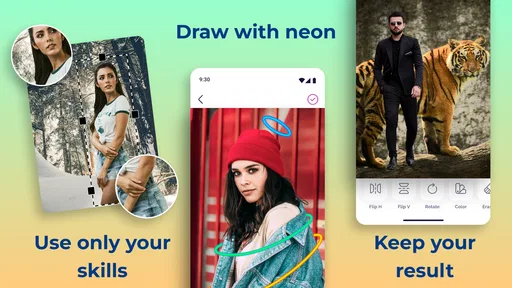
Our Review of Cut and Paste Photos
 Analysis by Appyee
I’d choose a cut-and-paste editor based on one practical question: do I want to move a subject into a different scene, or do I need a full photo-editing workspace? Cut and Paste Photos is aimed at the first job. It is a free photography app from ZipoApps, rated for Everyone, and its central appeal is the directness of making a cutout and placing it somewhere else. That focused purpose is useful when I want a quick visual joke, a playful greeting, or a simple composite without learning a complex editor.
Start with the picture, not the effect
The quality of a composite depends as much on the source images as on the editing controls. I get the best results when the subject is clearly separated from its background and the new scene has a similar camera angle and lighting. A person photographed straight on can look pasted into a dramatic side-lit landscape, even if the outline is neatly cut. Choosing compatible images first saves more time than trying to rescue a mismatched pair with filters afterward.
For a quick everyday example, imagine making a birthday image for a friend. I could cut their portrait from a clear photo, place it over a background that suits the joke, then adjust the size and rotation until the perspective feels plausible. I would keep the result deliberately light rather than expecting a seamless professional composite. That is the kind of small, personal project where a dedicated cutout workflow makes sense.
Where it fits among photo editors
Compared with a general-purpose photo editor, this app puts the subject-removal-and-placement task front and center instead of asking me to work through a broad set of editing stages. That makes it easier to approach when I only need a simple composition. A full desktop editor or a more advanced mobile editor is a better fit when I need precise layer control, detailed masking, extensive color correction, or a carefully polished commercial image. Those tools can offer more control, but they also ask for more time and editing confidence.
It is also different from a collage maker. Collage apps are usually the more natural choice when the aim is to arrange several complete photos in a grid or scrapbook-style layout. Here, the useful idea is isolating part of one image and giving it a new setting. I would pick the simpler route that matches the finished picture I have in mind, rather than starting in a cutout app and trying to force it into a multi-photo layout.
Small choices that improve a cutout
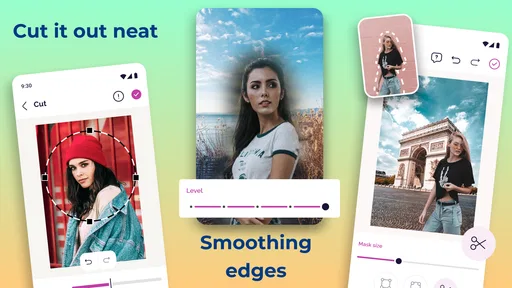
When I trace around a subject manually, I work in short passes and pay extra attention to hair, gaps between limbs, and other uneven edges. Rushing around the outline can leave a visible halo that becomes obvious against a contrasting background. If an automatic selection gets most of the subject right, I treat it as a starting point rather than assuming it has handled every fine edge perfectly. A few careful corrections can make the result feel much more intentional.
I also think about the boundary between the original photo and the replacement scene before settling on a background. A busy scene can hide small edge flaws, but it can also make a rough cutout harder to read. A simple, uncluttered background often makes the subject easier to place convincingly. Matching the apparent scale matters too: a cutout that is much larger than nearby objects can look like a joke, which is fun when intended and distracting when it is not.
What to consider before committing
The app’s straightforward concept is its strength, but quick cut-and-paste editing is not a substitute for detailed retouching. Fine outlines, difficult hair, transparent objects, and complicated backgrounds can take patience, and a basic composite may still look edited. I would not choose it for work where accurate masking, repeatable professional output, or extensive layer adjustments are essential. For those jobs, an editor designed around deeper control is the safer choice.
It is free to install, though in-app purchases range from $0.99 to $149.99 per item. I would try the basic workflow first and decide whether I actually need any paid extras before spending money; the broad price range makes it sensible to check what an individual purchase offers in the app. The app has a 4.6 average from around 355,000 ratings, and it has passed 10 million installs. Those figures suggest that many people have tried it, but they do not tell me whether its particular editing style suits my own needs.
Who is likely to enjoy it?
I think it is most appealing to casual creators who want to make a funny image, personalize a social post, or experiment with placing a familiar subject in an unexpected setting. It can also be handy for someone who wants to learn the basic idea behind a composite without beginning with a complicated editing suite. The current version is 2.6.8, and the app was released on April 25, 2018, so it has been around long enough to have a substantial audience. I would still judge it by the current workflow on my own device rather than assuming that popularity guarantees a perfect fit.
If you mainly take photos to preserve memories and rarely alter them, this may not earn a regular place on your phone. Likewise, if you already rely on an editor with accurate selection tools and prefer to keep all adjustments in one workspace, switching for a single cutout feature could add unnecessary steps. The best reason to install it is a clear, recurring use: making quick composites that you enjoy sharing or saving.
One practical question is whether a finished image is ready to share immediately. The app supports saving to the device and sharing edited photos, but I would inspect the saved result before posting: check the outline at normal viewing size, look for leftover background around the subject, and make sure the crop still works in the destination app. That brief check is especially worthwhile when the image will be viewed as a small thumbnail, where a misplaced edge can stand out more than it does while editing.
Another decision is how much effort to invest in the first attempt. I would start with a high-contrast subject and a background that does not compete with it, then make a rough placement before fine-tuning scale and rotation. If the cutout looks wrong even before adding effects, adding text or filters is unlikely to solve the underlying mismatch. This sequence keeps the workflow simple and helps me tell whether the source photo is suitable before spending time polishing it.
For repeated projects, I would keep the original photos untouched and treat each composite as a separate creative result. That gives me room to try another background or redo a rough selection without losing the source image. It also helps when I want to make a second version for a different occasion: I can reuse the idea while adjusting the scene and placement for the new purpose instead of treating the first export as a working master.
Getting Started with Cut and Paste Photos
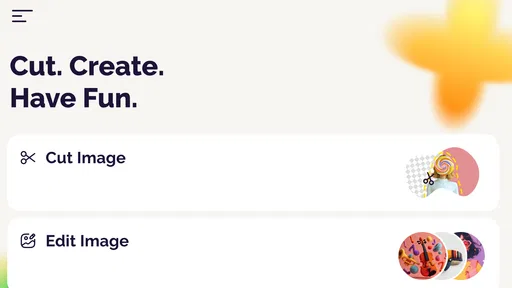
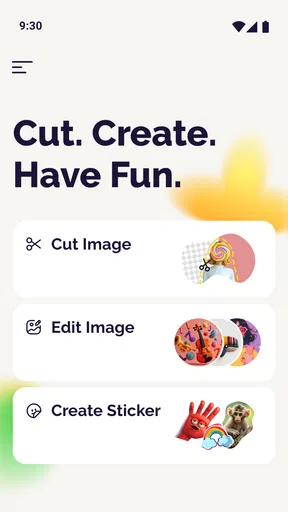
The first thing you’ll notice when you fire up Cut and Paste Photos is how user-friendly it is. The interface is clean and intuitive, making it super easy to dive right in, even if you’re a total newbie to photo editing. Once you’ve downloaded the app from the App Store or Google Play, you’re greeted with a simple menu that guides you through the process of selecting a photo to edit.
Snip, Snip: Cutting Made Easy
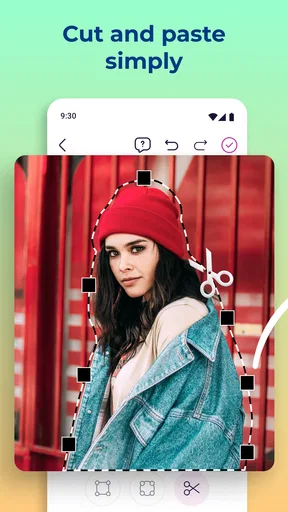
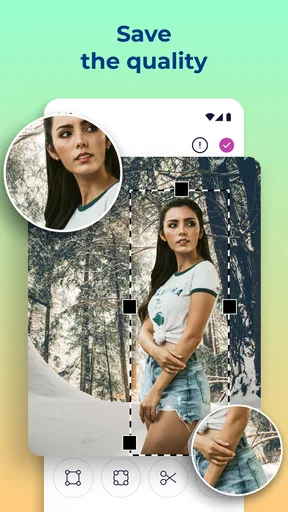
The cutting feature is where the magic happens. You can choose to manually trace around the object you want to cut out, or let the app’s smart AI do the heavy lifting for you. I tried both methods, and while my steady hand could use some work, the AI was impressively accurate. It’s almost like having a mini Photoshop in your pocket! And if you make a mistake? No worries, there’s an undo button that’ll save the day.
Pasting Like a Pro
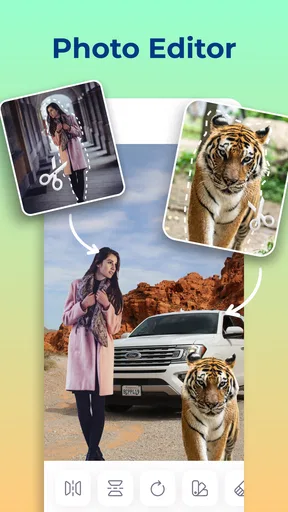
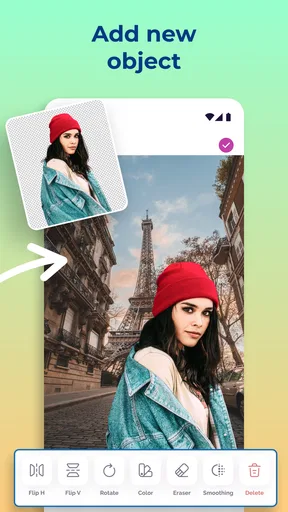
Once you’ve got your cutout, the fun really begins. The app lets you paste your selection onto any background you choose. Whether you want to place your best friend on a tropical beach or put your pet in outer space, the possibilities are endless. The app includes a library of backgrounds, but you can also upload your own, which gives you tons of creative freedom.
Features That Stand Out
One of the features I love is the ability to adjust the scale and rotation of your cutout. It means you can make sure everything fits perfectly, no matter the background. Plus, there are tons of editing tools like filters and text options to help you create the perfect composition. I spent hours playing around with these tools, and it was surprisingly addictive!
Sharing Your Masterpiece
What’s the point of creating something awesome if you can’t show it off, right? The app makes it easy to share your edited photos directly to social media or save them to your device. I found this feature particularly handy for quickly posting my creations to Instagram without any fuss.
Is It Worth Your Time?
Now, let’s talk about whether this app is worth downloading. In my opinion, if you love photo editing or want to add a little flair to your pictures, Cut and Paste Photos is definitely worth checking out. It’s a fun, easy-to-use app that opens up a world of creative possibilities. Plus, it’s a great way to impress your friends with your photo-editing prowess.
In conclusion, Cut and Paste Photos is a fantastic tool for anyone looking to have some fun with their photos. Whether you’re a seasoned pro or just getting started, this app offers the tools you need to create stunning, imaginative images. So go ahead, give it a try, and let your creativity run wild!
Making the choice
My recommendation is to try it when the goal is a quick, playful composite and the source image gives the cutout a fair chance. The combination of manual selection, automatic help, background options, and simple positioning makes the basic idea approachable without demanding that every edit become a project. I would choose a more capable layer-based editor for precise work, and a collage app for arranging whole photos, but neither is automatically better for a quick subject swap.
There is a small learning curve in judging what will look convincing: edges, lighting, and scale matter more than adding extra effects. Once I approach it with those limits in mind, the app feels most useful as a creative tool rather than a professional retouching solution. If that matches what you want to make, it is an easy one to explore; if not, your time is probably better spent in an editor built for the kind of control your projects demand.
Verdict
Strengths of Cut and Paste Photos
- Easy to use with intuitive interface.
- Variety of editing tools available.
- Supports high-resolution images.
- Multiple export options for sharing.
- Frequent updates improve features.
Limitations of Cut and Paste Photos
- Ads can be intrusive at times.
- Limited free version features.
- Occasional app crashes reported.
- No offline editing capabilities.
- Some tools require in-app purchases.
Other Releases by ZipoApps
View All
Screen Mirroring - Cast to TV
Video Players & Editors4.3

Edge Lighting - Borderlight
Personalization4.8

Widgets OS 18 - Color Widgets
Personalization4.7

TIME WARP SCAN: Face Scanner
Photography4.6
Similar Picks in This Category
View All
Google Photos
Google LLC4.4

Gallery
Google LLC4.2

Picsart AI Photo Editor, Video
PicsArt, Inc.3.9

B612 AI Photo&Video Editor
SNOW Corporation4.1

BeautyPlus-Selfie Photo Editor
PIXOCIAL TECHNOLOGY (SINGAPORE) PTE. LTD.4.5

Remini - AI Photo Enhancer
Bending Spoons4.1
You May Also Like
View All
Frequently Asked Questions
What is Cut and Paste Photos, and how does it work?
Cut and Paste Photos is a versatile photo editing app that allows users to effortlessly cut out sections of an image and paste them onto a different background. Utilizing advanced AI technology, it simplifies the process of photo manipulation, making it accessible even for beginners who want to create fun and creative images.
Is Cut and Paste Photos available for both Android and iOS devices?
Yes, Cut and Paste Photos is available for both Android and iOS platforms. Users can easily download it from the Google Play Store or the Apple App Store, ensuring a seamless experience across different devices. It’s optimized for various screen sizes, providing a user-friendly interface on smartphones and tablets alike.
Are there any in-app purchases or subscriptions required?
While Cut and Paste Photos is free to download, it does offer in-app purchases and subscription options. These may include advanced editing tools, additional background templates, and an ad-free experience. Users can opt for these features to enhance their editing capabilities, though the basic version remains functional without purchases.
Does Cut and Paste Photos require an internet connection to function?
Cut and Paste Photos primarily operates offline, allowing users to edit photos without an internet connection. However, some features, such as downloading new backgrounds or updates, may require internet access. This flexibility makes it convenient for users to edit photos anytime, anywhere, without relying on data or Wi-Fi.
How does Cut and Paste Photos ensure user privacy and data security?
Cut and Paste Photos takes user privacy seriously by implementing robust security measures. The app does not collect personal data beyond what is necessary for functionality. Additionally, any images edited within the app remain on the user’s device unless explicitly shared, ensuring privacy and data security at all times.
